2. Install in WordPress
In WordPress admin, go to Plugins -> Add New -> Upload Plugin, then select the downloaded ZIP.

Plugin installation
The plugin is downloaded from WordPress.org, activated in WordPress admin, then explicitly connected to your CashFlowCanary account to feed monitoring and paid-plan AI intervention on the CashFlowCanary VPS.
The flow is intentionally explicit: nothing is connected until the WordPress administrator enters the token and WooCommerce keys.
Open the official WordPress.org listing, download CashFlowCanary Checkout Monitor and keep the ZIP file intact.
In WordPress admin, go to Plugins -> Add New -> Upload Plugin, then select the downloaded ZIP.
Activate WooCommerce and then CashFlowCanary. The plugin exposes a dedicated admin page with local demo mode.
Create a CashFlowCanary account, enter the site token and add WooCommerce REST keys when you want to move from demo to live monitoring. Paid plans also enable the incident report, VPS-hosted language model, AI intervention and intervention report workflow.
Before live connection
Local demo mode lets you check the WordPress rendering before any service connection. Live monitoring starts only after explicit setup.
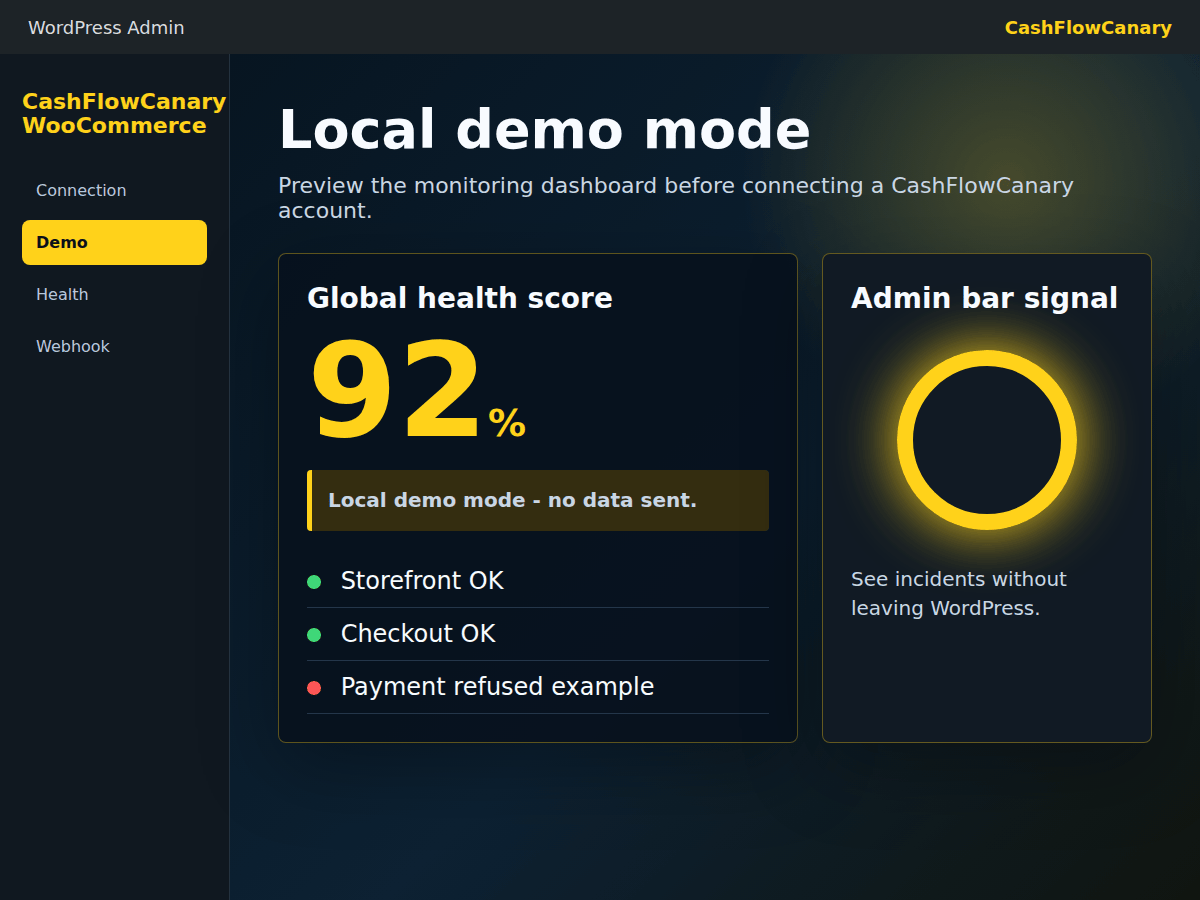
A successful install does not stop at WordPress activation. It must produce a visible and useful monitoring signal.
Local demo mode confirms the admin screen, statuses and admin bar signal render correctly.
After connection, the CashFlowCanary cockpit should show the latest plugin check, health endpoint and next expected check.
The site should still produce checks, useful alerts or viewable reports. This matters more than the download.
A review can be requested after that first useful result, never before, never for a reward and always optionally.
The private endpoint should answer only with the expected token and expose aggregate signals used by diagnosis and paid-plan AI intervention, without running a model or agent inside WordPress.
Webhook setup should stay visible and reversible from WordPress admin.
Once the site is connected, the cockpit shows the latest plugin check and the next expected check.
Installation should lead to a concrete win before any review prompt: see the plugin, validate the signal, then connect live monitoring.
Demo mode and error labels should explain what to do without creating an account, sensitive screenshots or customer data.
Each important screen links to the installation page, checkout monitoring method or support depending on the blocker.
The WordPress.org review request should appear only after a first successful check, remain optional and be dismissible.
The main indicator is the number of sites that completed a first successful plugin check in the last seven days, without storing unnecessary PII.